Logo
  • Home
  • About
  • Team
  • Work
  • Services
    • Dailies
    • Editorial
    • Conform
    • Finishing
    • Delivery
    • Embedded
    • Immersive
    • Archival
    • Supervisors
  • Apps
    • Edit Options
    • Review Options
    • Submit Metadata
    • Playlink Waiver
    • Remote Access
    • Timecode for iOS
  • Guides
    • Adobe
      • Send Premiere Pro Project For Conforming
      • Send Premiere Pro Project for Finishing
    • Apple
      • Send FCPX Project
    • Avid
      • Send Avid Media Composer Project for Conforming
      • Send Avid Media Composer Project for Finishing
      • Send Avid Media Composer Project for Delivery
    • Blackmagic
      • Send a DaVinci Resolve Project for Conforming
      • Send a DaVinci Resolve Project for Finishing
    • Miscellaneous
      • iPad Pro Review System Setup
      • iPad Reviewing with Sony Ci
  • News
  • Contact
featured image
October 30, 2024 by Lily Ketley DaVinci Resolve, Software, Technology, Tips, Tutorials, Workflow 0

Send a DaVinci Resolve Project for Finishing

Send a DaVinci Resolve Project for Finishing

This is a basic guide on how to get your DaVinci Resolve Project over to us for Final Post

This guide is specifically for consolidating a Resolve project after it has been conformed and then sending it to us. It is highly advisable to duplicate your project at this stage to keep another copy safe.

First open Data Burn-In and use the settings below.

  • Then go to the deliver page and select the default YouTube 720p setting.
  • Point to to a logical location to export to and then click Add to Render Queue then hit render.
  • Back in the edit page collapse your video layers so that only necessary media is going to come across to us and move any text to a top track.
    Before:

After:
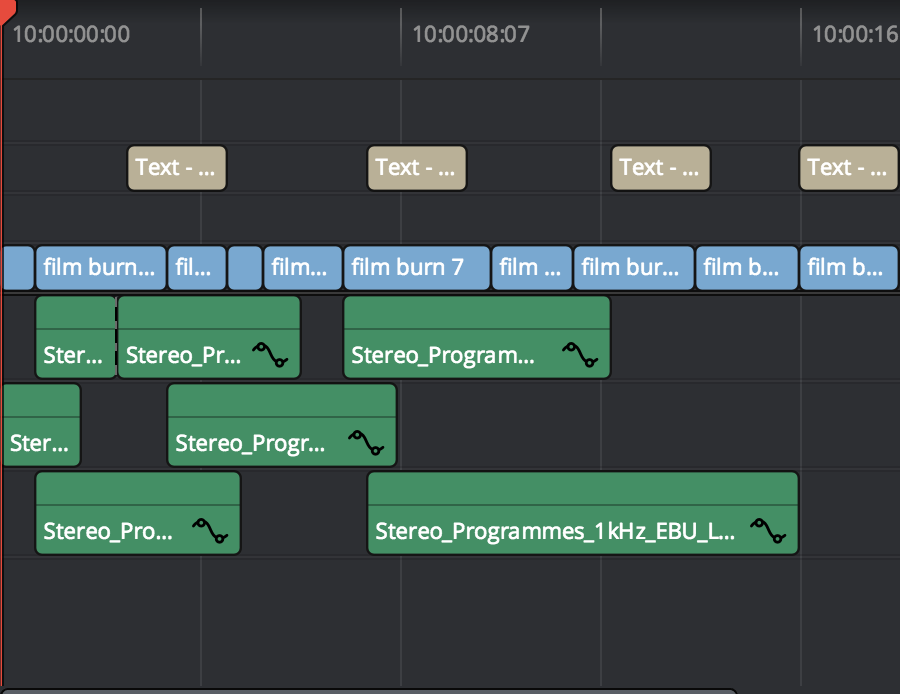
  • You can have more than one timeline in your project, but all need to be ticked to enable for the option to relink to be available. If you just want to send one timeline, you will need to remove all other timelines from the project before consolidating.
  • Open the Media Manager and select Timelines, point the Media Destination to the drive or cloud location you will be sending us on and then be sure to select the correct timeline and follow the settings below and then hit start.

Once everything is completed you can export the consolidated project (.drp) and include that with the media.

That’s it!

share

RELATED POSTS

May 18, 2014by Zeb Chadfield0

Shapeshifter – In Colour

read on
share
November 2, 2013by Zeb Chadfield0

Blue nights?

read on
share
HDR at BIRTV 2024: A Game-Changing Panel Discussionprevious post
Rethinking Post Production: Why Embedded is the Futurenext post

Recent Posts

  • Founder Zeb Chadfield Completes Acquisition for Full Ownership of Post-Production Firm The Finish Line
  • The Finish Line Year in Review #2025
  • The Finish Line Awarded HDR Vivid Certification
  • 10 Lessons From Over a Decade of Distributed Post
  • Rethinking Post Production: Why Embedded is the Future
  • Send a DaVinci Resolve Project for Finishing
  • HDR at BIRTV 2024: A Game-Changing Panel Discussion

Search

The Finish Line Media Ltd